A resume for every job, in your own words.
Upload your resume once. For each job, see which of its keywords you cover, add them to the lines they fit, and rewrite only the lines you choose — then download an ATS-friendly PDF that fills the page.
Not ready to sign up? Check your resume against an ATS — free.
- Nothing changes unless you ask
- Keywords exactly where you want them
- Four ATS-friendly templates
How it works
- 1
Your profile, once
Upload your resume (PDF or Word) and check what we read — or build one step by step, with a projects section if you're just starting out.
- 2
Paste the job
Or open it on LinkedIn, Naukri or Indeed and use the Chrome extension (coming to the Chrome Web Store). You see which of the job's skills and keywords your resume covers, and which it doesn't.
- 3
Your resume, as you wrote it
In seconds: every line, in your words and your order, in an ATS-friendly template. Nothing changes until you say so.
- 4
You choose what changes
Add the job's keywords to the lines they fit. Rewrite a line or a whole role for the job. Fit it to one page, or fill the page. Download the PDF.
You're in charge of every line
The AI does the typing; you make the calls. Everything it changes is marked, and every change can be undone.
Keywords where you want them
Under every line, the job's keywords that line doesn't have — the ones missing from your resume first, then ones used elsewhere. Tick the ones that fit, untick any to drop, apply once.
Rewrite only what you pick
“Rewrite for this job” on one line, or all the lines of a role in one go. Don't like it? Use original, or rewrite again.
Fits the page — and fills it
Fit to one or two pages without losing your latest role's detail. Or fill the empty space: your own left-out lines first, then larger text and spacing, down to the bottom margin.
Your layout
Margins (the same on all four sides), section order, which sections and header details show, how many lines each role keeps. A live preview of every page as you edit.
A cover letter, too
Written for the job from what's in the resume — and checked the same way, so it doesn't claim what your resume doesn't.
From the job page
The Chrome extension reads the posting on LinkedIn, Naukri, Indeed, Greenhouse, Lever or Workday, makes the resume and lets you add keywords right in the side panel. Coming to the Chrome Web Store.
Every keyword, accounted for
See which of the job's skills your resume already shows. For the rest, pick the lines they belong in — one keyword on several lines is fine — and add or remove any of them in a single apply. Missing one you actually have? Save it to your profile with “I have this”. Missing one you don't? It stays missing.
When you ask for a rewrite, it doesn't embellish
AI loves to puff a resume up — and that gets people caught out in interviews. So every rewrite is checked against what you actually wrote, and when it overreaches, your own words stay. These are real rewordings it refused while we tested it:
- No added claims
Rejected:
Migrated settlement jobs to Kafka consumers on AWS ECS for more robust processing.Kept: Migrated settlement jobs from cron scripts to Kafka consumers on AWS ECS.
- No dropped numbers
Rejected:
Reduced ledger API p99 latency by tuning PostgreSQL indexes.Kept: Cut p99 latency of the ledger API from 800ms to 120ms with PostgreSQL index tuning.
- No added scale
Rejected:
Implemented Postgres table partitioning for large-scale trade history.Kept: Introduced Postgres table partitioning for trade history.
Templates an ATS can read
One column, real text, standard headings, contact details on the page. Every template's PDF is checked by reading it back the way an applicant tracking system does. Shown here with a sample resume.
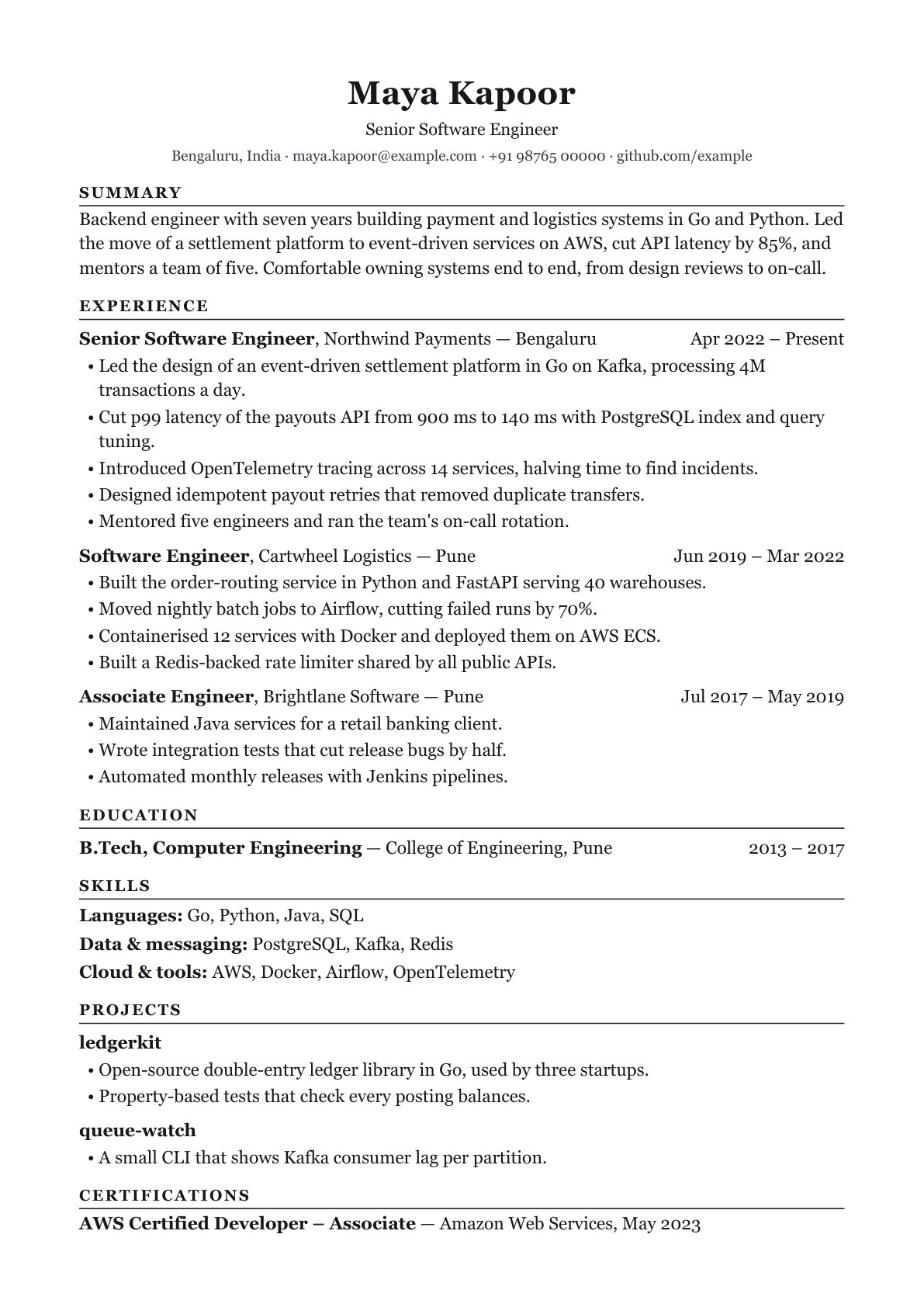 ClassicSerif, centred header
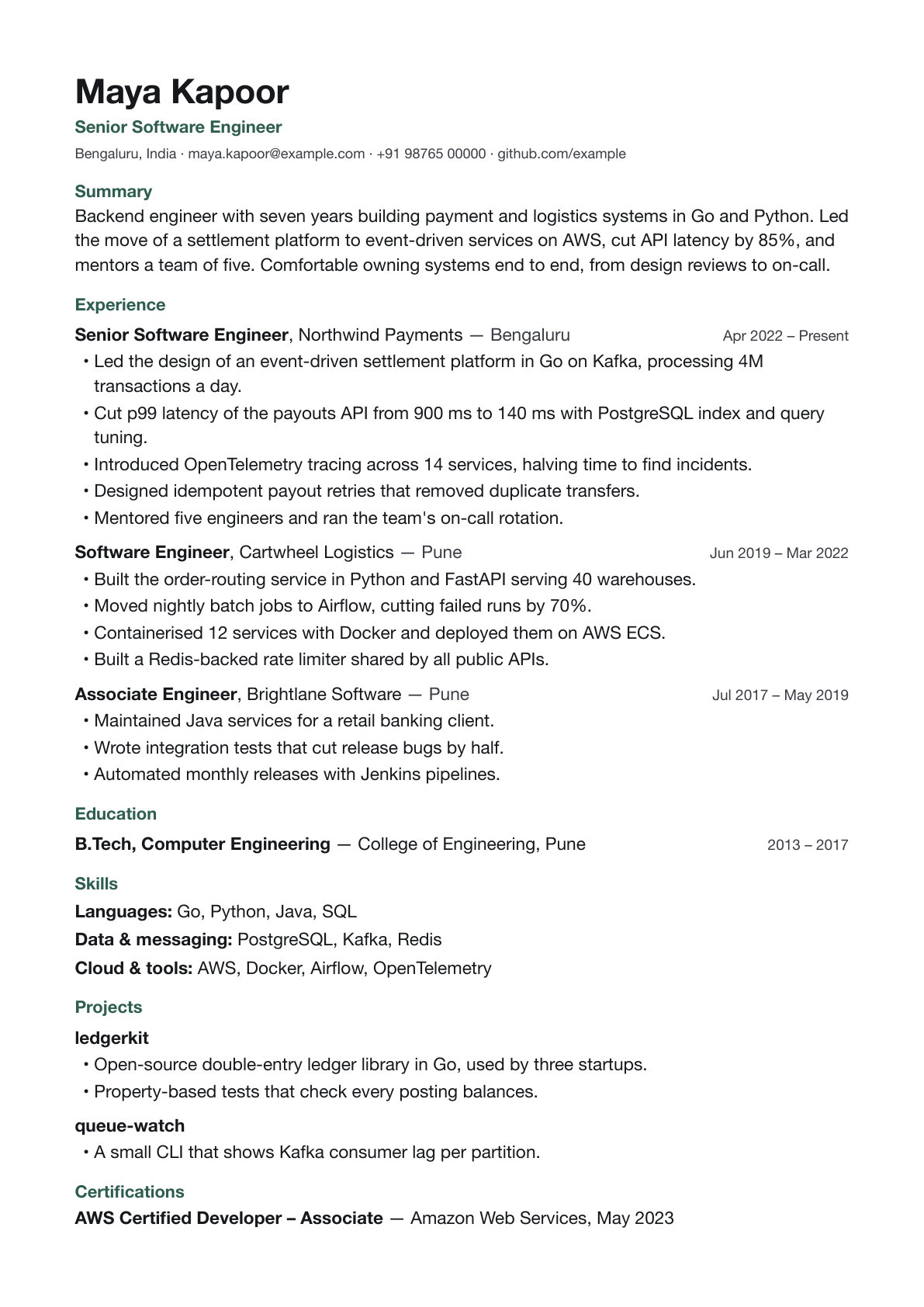 ModernSans-serif, one accent colour
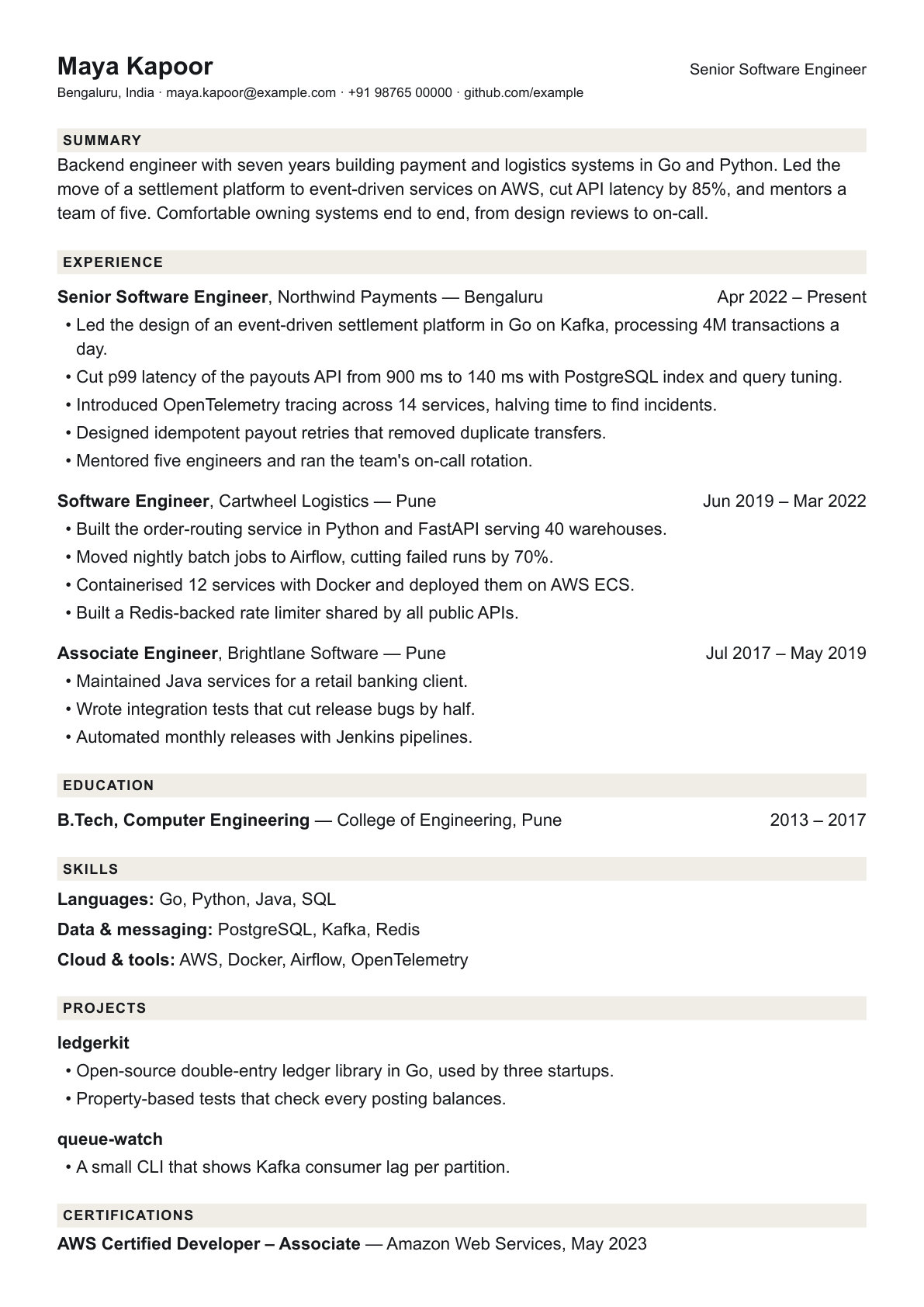 CompactFits a long career on a page
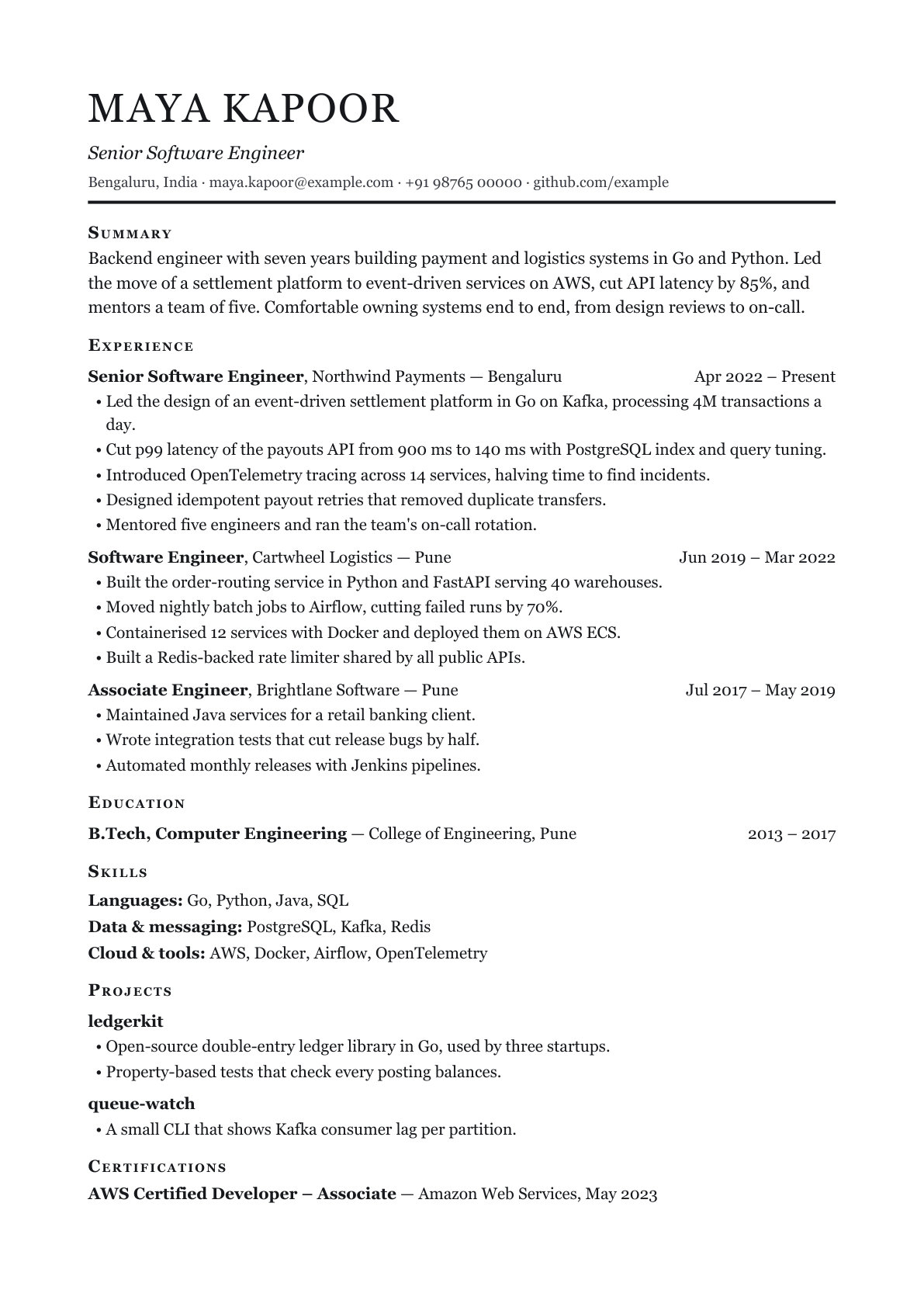 ExecutiveSummary-led, for senior roles
Questions
›Do you change my resume when I paste a job?
No. A new resume is your profile exactly as you wrote it — every line, in your words and order. You decide what changes: which keywords go into which lines, and which lines (or roles) get rewritten for the job.
›Does the AI make things up?
Not when it rewrites. “Rewrite for this job” is checked against your line: no new numbers, skills, claims or scale, no dropped metrics, and a second check reads each one side by side. Anything that fails stays in your words, and the editor says why.
›Can I add a keyword my line doesn't mention?
Yes — that's your call, not ours. You pick the keywords for each line, and the line is rewritten to include them. Only add what that work really involved: you'll be asked about it.
›What if the job asks for a skill I don't have listed?
It shows as “Not in this resume yet”. Add it to a line that fits, or click “I have this” to save it to your profile for every future resume. If you don't have it, leave it — we never add it for you.
›Will my resume get past an ATS?
No tool can promise that. What we do control: one column, real text (not images), standard section headings, and contact details in the page itself rather than a header. We test every template's PDF by reading the text back out, the way an ATS does.
›Which files can I upload?
PDF and Word (.docx), up to 5 MB. Scanned images don't work yet — export a PDF from your editor instead. No resume yet? Build one step by step.
›Does editing my profile change resumes I've already made?
No. Each resume is a snapshot. Use “Refresh from profile” if you want it rebuilt from your profile as it is now.